Tips · Windows
Has your PC ever started a massive Windows update out of nowhere — and when it finished, your menus looked different or your software stopped working properly?
This post shows you how to keep receiving security updates while blocking unwanted feature upgrades — so your system stays on the stable version you know and trust.
1. Open the Local Group Policy Editor (gpedit.msc)
Press Win + R on your keyboard to open the Run dialog.
Type gpedit.msc and press Enter to launch the Local Group Policy Editor.
This feature is built into Windows Pro, Enterprise, and Education editions. If you’re on Windows Home, you’ll need to apply a gpedit.msc installation script separately before this window becomes accessible.
2. Navigate to the Target Feature Update Version Setting
Once the editor is open, follow this path in the left-side navigation tree:
- Computer Configuration → Administrative Templates → Windows Components → Windows Update → Manage updates offered from Windows Update
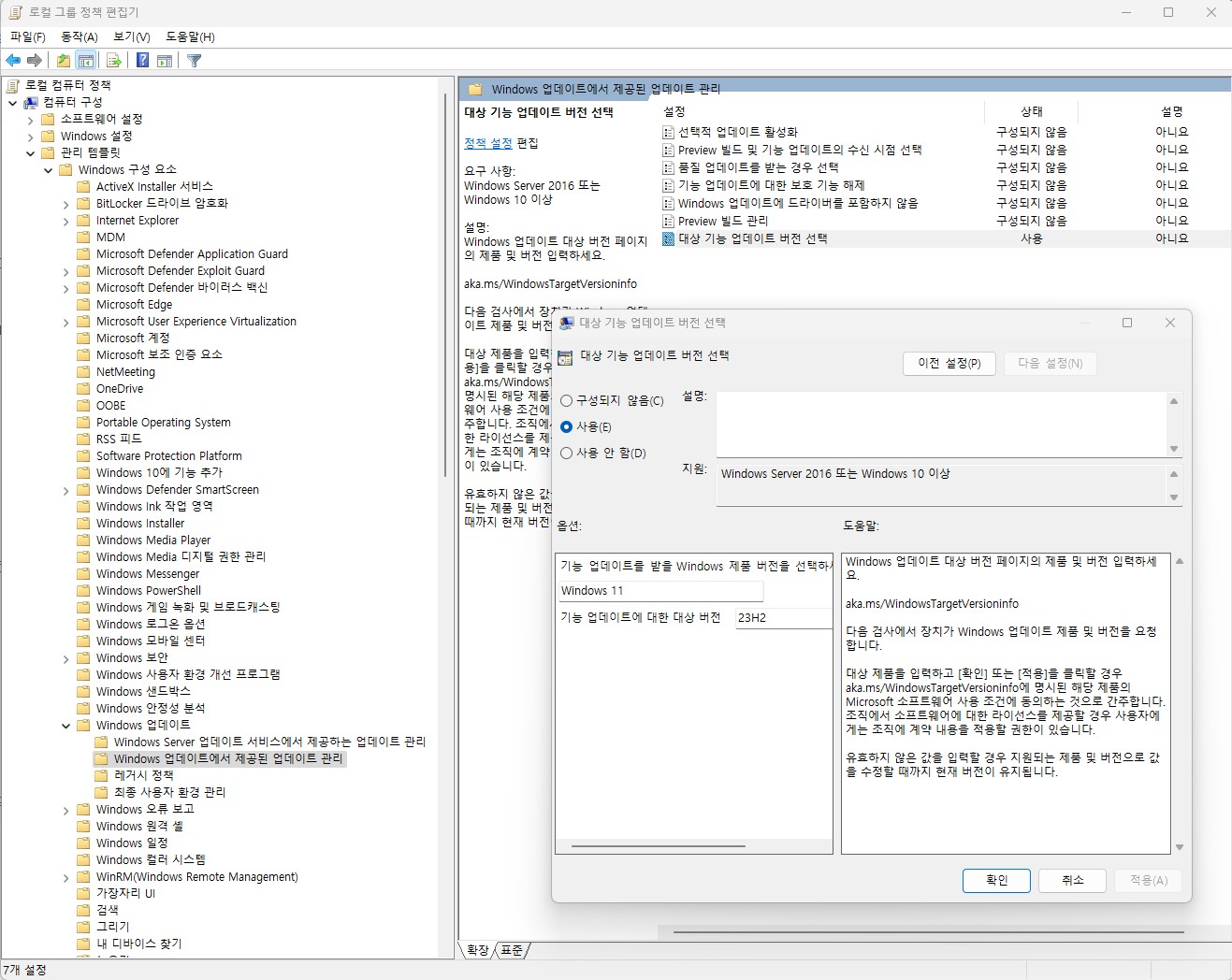
Depending on your Windows build (10 or 11), the last folder name may vary slightly — something like “Manage end user experience.” Look for the closest match and you’ll find it.
3. Lock Your Preferred Windows Version
In the right panel, find the entry called [Select the target Feature Update version] and double-click it.
A settings window will open. Change the default “Not Configured” to [Enabled]. Two input fields will appear in the lower-left “Options” section.
- Option 1 (Which Windows product version would you like to receive?):
Windows 11(or Windows 10) - Option 2 (Which target version for the feature update?):
23H2(or whichever version you want to stay on)
4. Confirm and Reboot
Click [OK] to close the settings window.
Finally, restart your PC to apply the changes. From now on, your system will only receive security patches within your locked version (e.g. 23H2) — and won’t be upgraded to 24H2 or beyond without your consent.