AutoCAD · Garbled Text · Text Style
You open an AutoCAD drawing and all the text is showing up as ??? — completely unreadable. Frustrating, right? The good news is the cause is almost always the same, and the fix is straightforward.
“Your data isn’t corrupted. It’s a font configuration issue — and one setting change is all it takes to fix it.”
This guide walks you through why Asian characters show up as ??? in AutoCAD and how to fix it, step by step. Follow along in order and you’ll have it sorted in a few minutes.
Step 1. Identify the Garbled Text
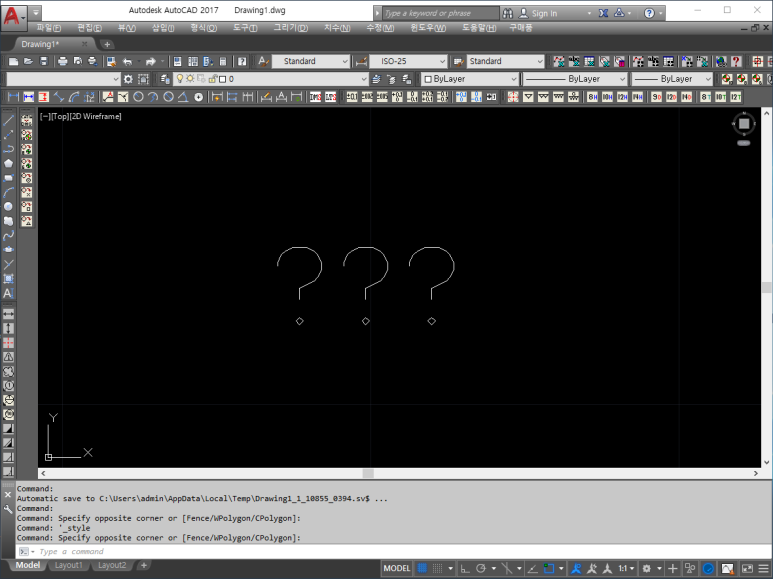
When you open a drawing and see text rendered as ??? like the screenshot below, the first thing to check is whether the text data itself is still intact — or actually lost.
Step 2. Check if the Text Data Is Still There (Ctrl+1)
Select the garbled text, then press Ctrl + 1 to open the Properties panel.
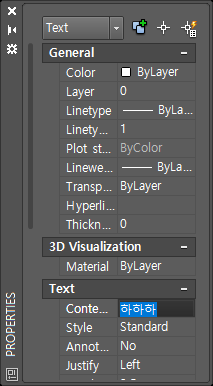
Look at the “Contents” field in the Properties panel. If the original text is showing up correctly there, the data is safe — it’s just being rendered incorrectly on screen because the assigned font doesn’t support those characters.
While you’re here, note down the Style name shown in the Properties panel (e.g., “Standard”). You’ll need it in the next step.
Step 3. Open the Text Style Dialog (ST)
Type ST in the command line and press Enter to open the Text Style dialog.
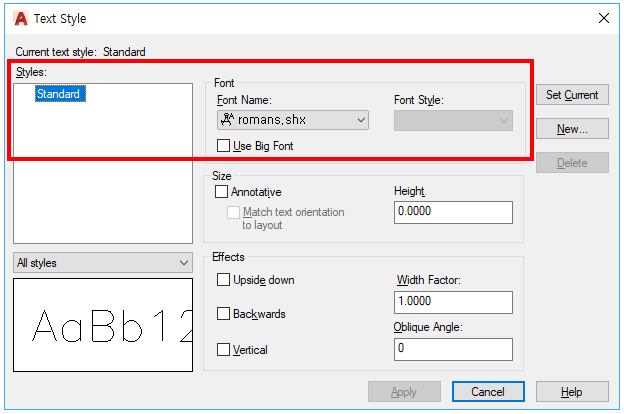
In the style list on the left, select the style name you noted earlier (e.g., Standard). Then check the Font Name setting on the right.
If the assigned font is a TTF font that supports Asian characters, things should display fine. But if it’s set to an SHX font, that’s your problem — SHX fonts only support ASCII characters by default and cannot render Asian text. Proceed to the next step.
Step 4. Enable Big Font Support
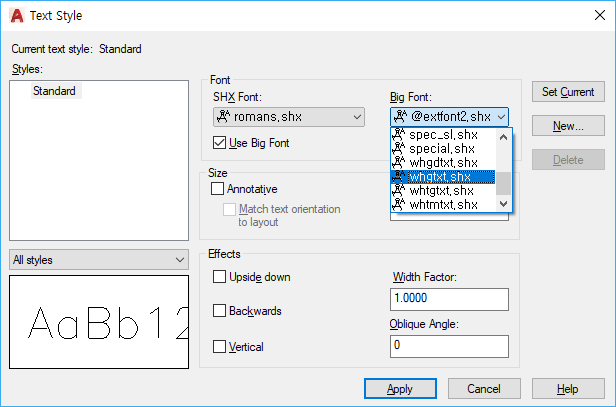
If an SHX font is selected, check the “Use Big Font” checkbox below the font name field.
This activates the Big Font dropdown on the right. Scroll down the list and select whgtxt.shx for Korean text support. (It’s near the bottom of the list.)
Once selected, click Apply, then Close.
Step 5. Confirm the Result
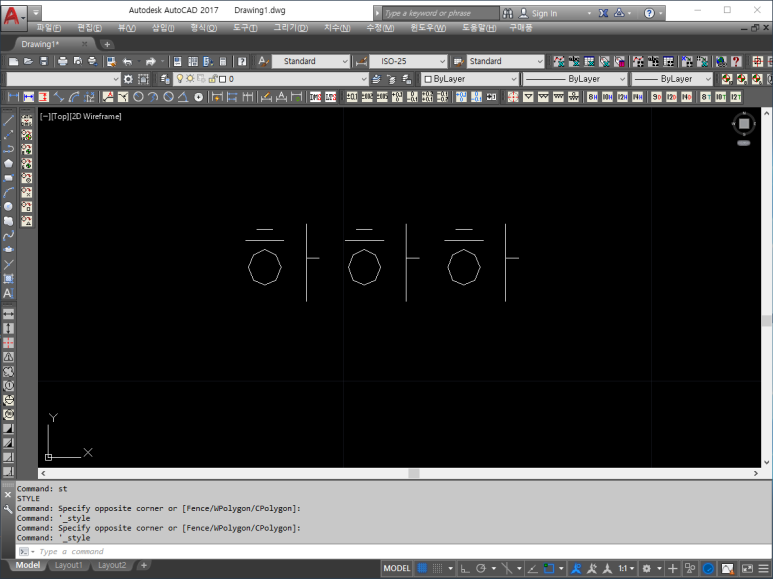
Back in the drawing, the text should now be rendering correctly. If everything looks good, you’re done.
If the text is still garbled after updating the style, try running a drawing regeneration. Type RE in the command line and press Enter.
Note that on heavy drawings with lots of objects, the regen may take a moment. If it’s still not working after that, reopen the Text Style dialog (ST) and double-check that your changes were actually saved and applied.
📌 AutoCAD Big Font Reference — Supported Languages
AutoCAD’s Big Font files extend SHX font support to non-Latin scripts. Here’s a quick reference for the most commonly used ones:
| Big Font File | Supported Language / Script | Notes |
|---|---|---|
| whgtxt.shx | Korean (Hangul) | Single-stroke Gothic — most widely used for Korean |
| whtgtxt.shx | Korean (Hangul) | Double-stroke Taegothic |
| whgdtxt.shx | Korean (Hangul) | Double-stroke Gothic |
| bigfont.shx | Japanese | Standard Japanese Big Font |
| extfont.shx | Japanese | Extended Japanese font |
| chineset.shx | Traditional Chinese | Used for Traditional Chinese (Taiwan / Hong Kong) |
| chinese.shx | Simplified Chinese | Used for Simplified Chinese (Mainland) |
💬 One more thing: In rare cases, when you check the Properties panel the text content itself is completely garbled — not readable even there. Unfortunately, if the character data itself was corrupted or saved in the wrong encoding, a font change alone won’t recover it. That’s a deeper issue beyond a simple fix.